What is a Pull Request?
A Pull Request, commonly called a PR, is a request to merge changes from one branch into another branch.
In our workflow, a feature branch contains the new work, and the Pull Request proposes merging that work into main.
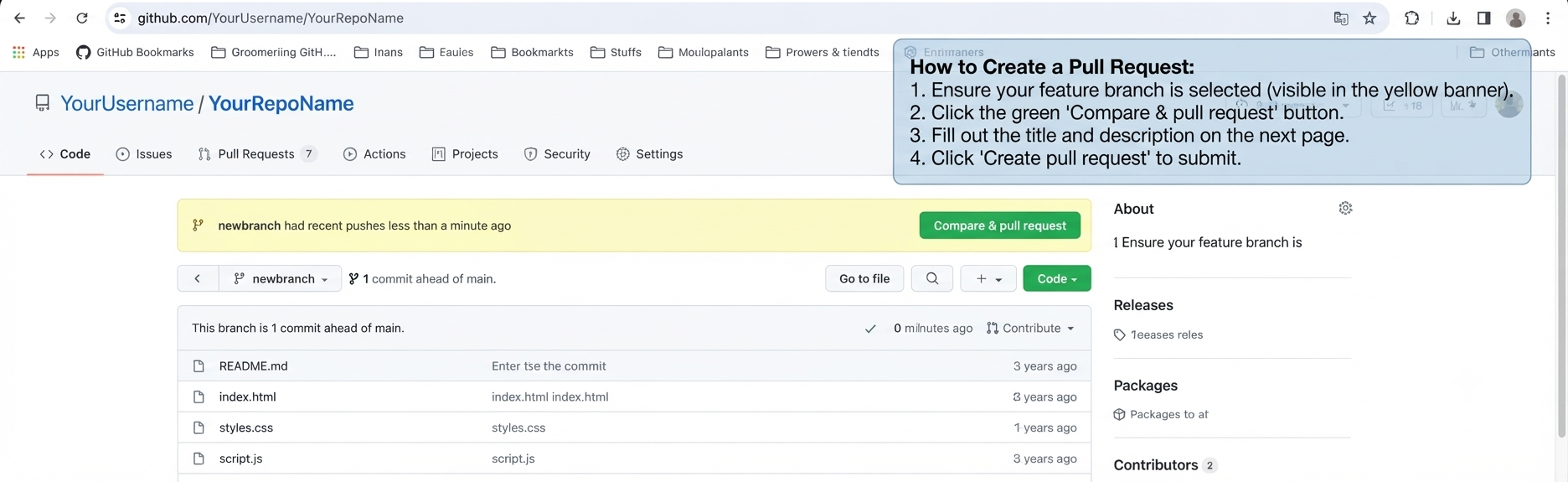
GitHub’s Compare & pull request action starts the Pull Request process for a feature branch.
When you open a Pull Request, GitHub shows the branch containing your changes and the branch that will receive those changes.
In our workflow, the feature branch is the branch being proposed, while main is the production branch that will receive the changes if the Pull Request is merged.
You are not asking Git to automatically change main. You are opening a review page that says: “Here are my changes. Please review them before they become part of main.”
Create a Pull Request
After pushing the feature branch to GitHub, open the repository and start the Pull Request process.
GitHub will open a Pull Request form where you can confirm the branches, describe the changes, and submit the request for review.
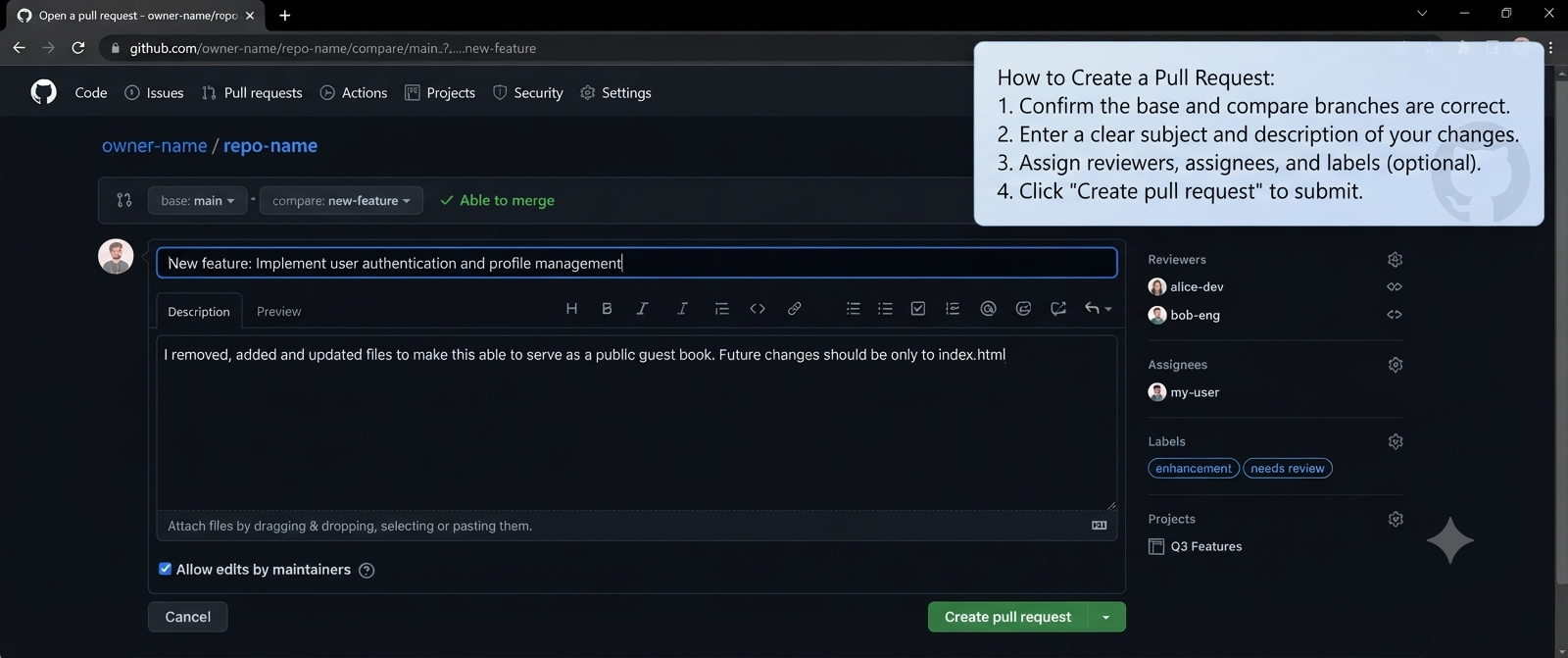
The GitHub Pull Request form is where you review the proposed change, select the branches, and provide information about the Pull Request.
Before creating the Pull Request, check that the feature branch contains the changes you actually want to merge.
Also verify that the Pull Request is targeting the correct base branch.
Use the title and description to explain what you changed, why you changed it, and anything that someone reviewing the change should know.
Confirm the direction of the Pull Request: your feature branch should be proposed for merging into main.
Base vs compare
When creating a Pull Request, GitHub asks you to select the branches involved in the comparison.
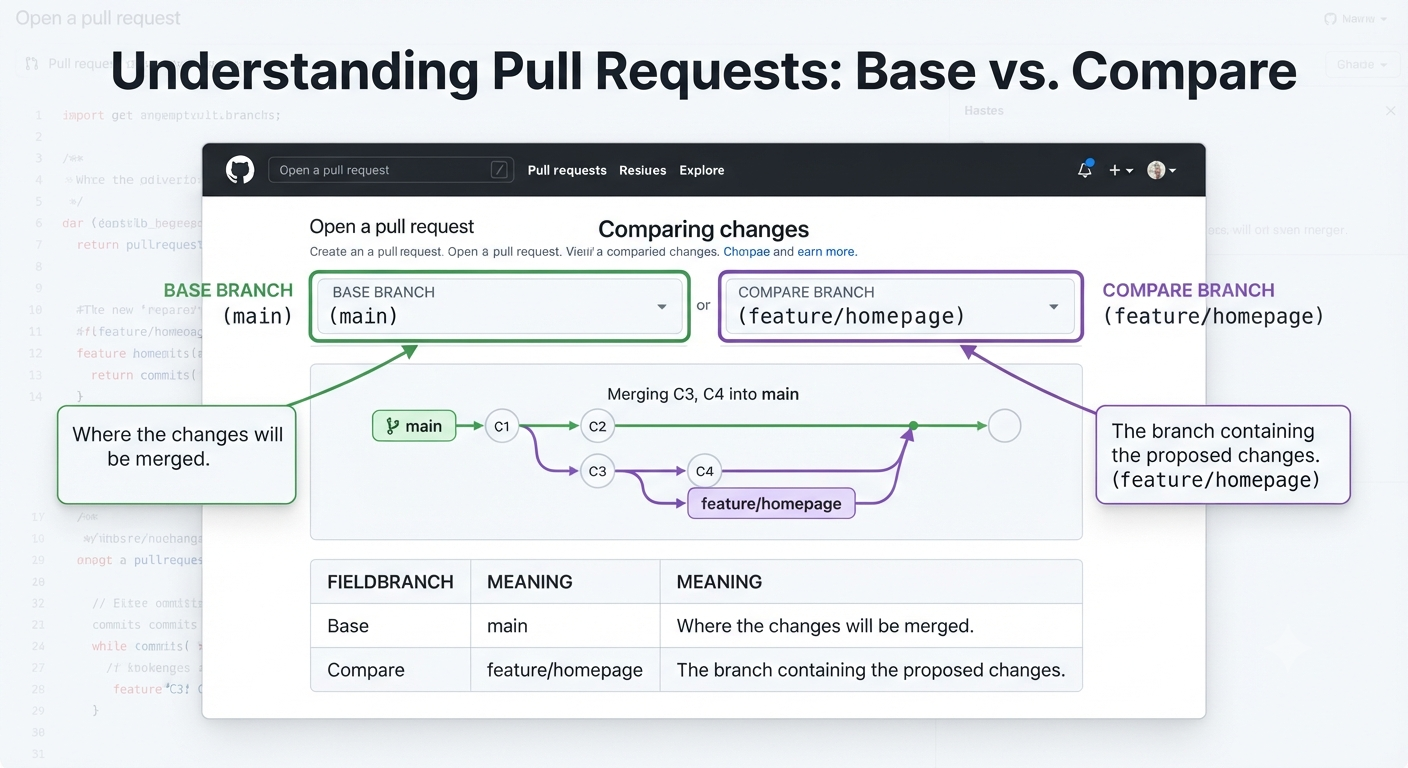
GitHub uses the base branch as the destination and the compare branch as the source of the proposed changes.
Base is where the changes are going.
Compare is where the changes are coming from.
| Field | Branch | Meaning |
|---|---|---|
| Base | main | The branch that will receive the changes. |
| Compare | feature/homepage | The branch containing the proposed changes. |
For our normal workflow, the direction should be:
feature/homepage → mainIf the branches are reversed, GitHub will show a different set of proposed changes.
Review changes
GitHub shows the changes included in the Pull Request so they can be inspected before the branches are merged.
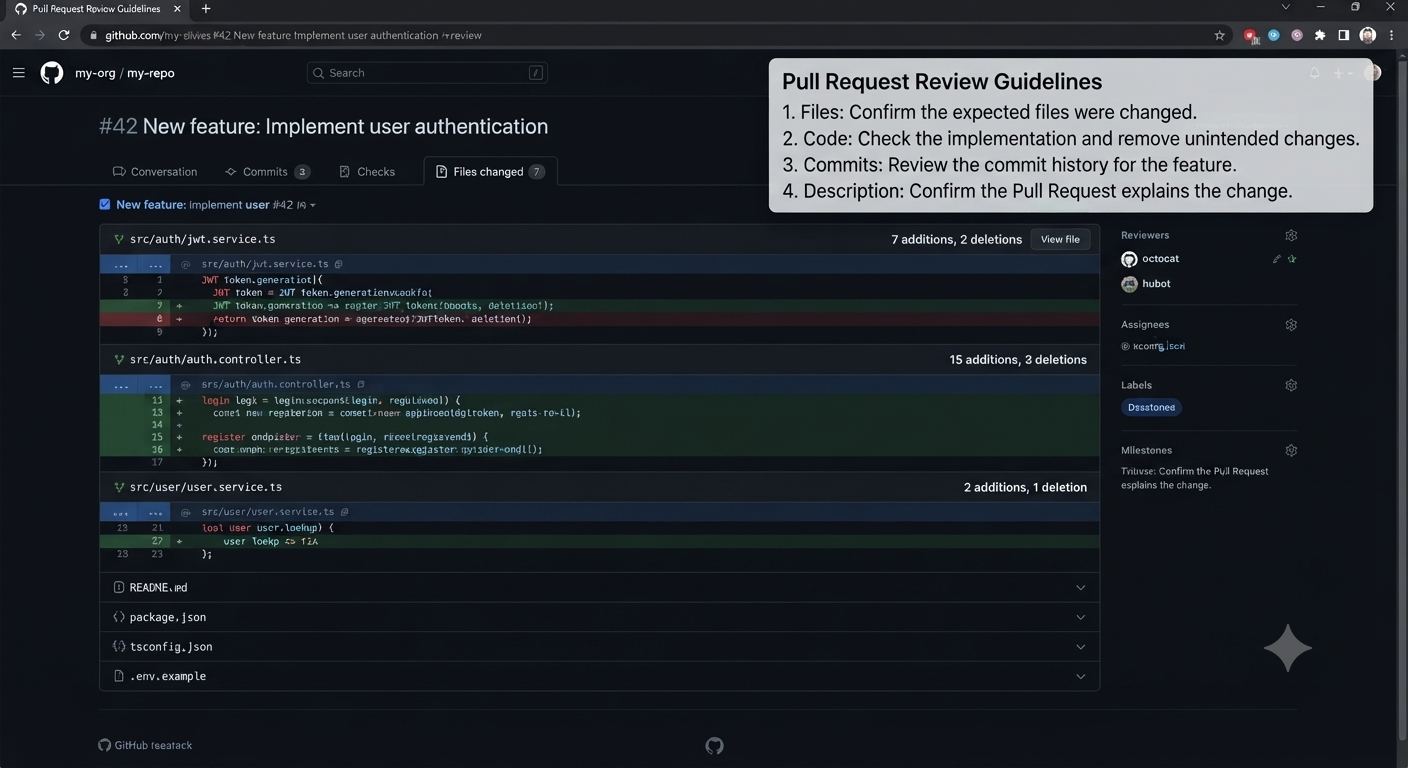
The Files changed view shows the actual differences introduced by the Pull Request.
Look at the files and lines that changed. Added lines and removed lines are displayed so you can understand exactly what the Pull Request will introduce.
Review areas such as:
| Area | What to inspect |
|---|---|
| Files | Confirm the expected files were changed. |
| Code | Check the implementation and remove unintended changes. |
| Commits | Review the commit history for the feature. |
| Description | Confirm the Pull Request explains the change clearly. |
The goal of this step is to make sure the Pull Request contains the changes you actually intend to merge into main.
Check the deployment
Before merging the Pull Request, check whether the project’s automated checks and preview deployment have completed successfully.
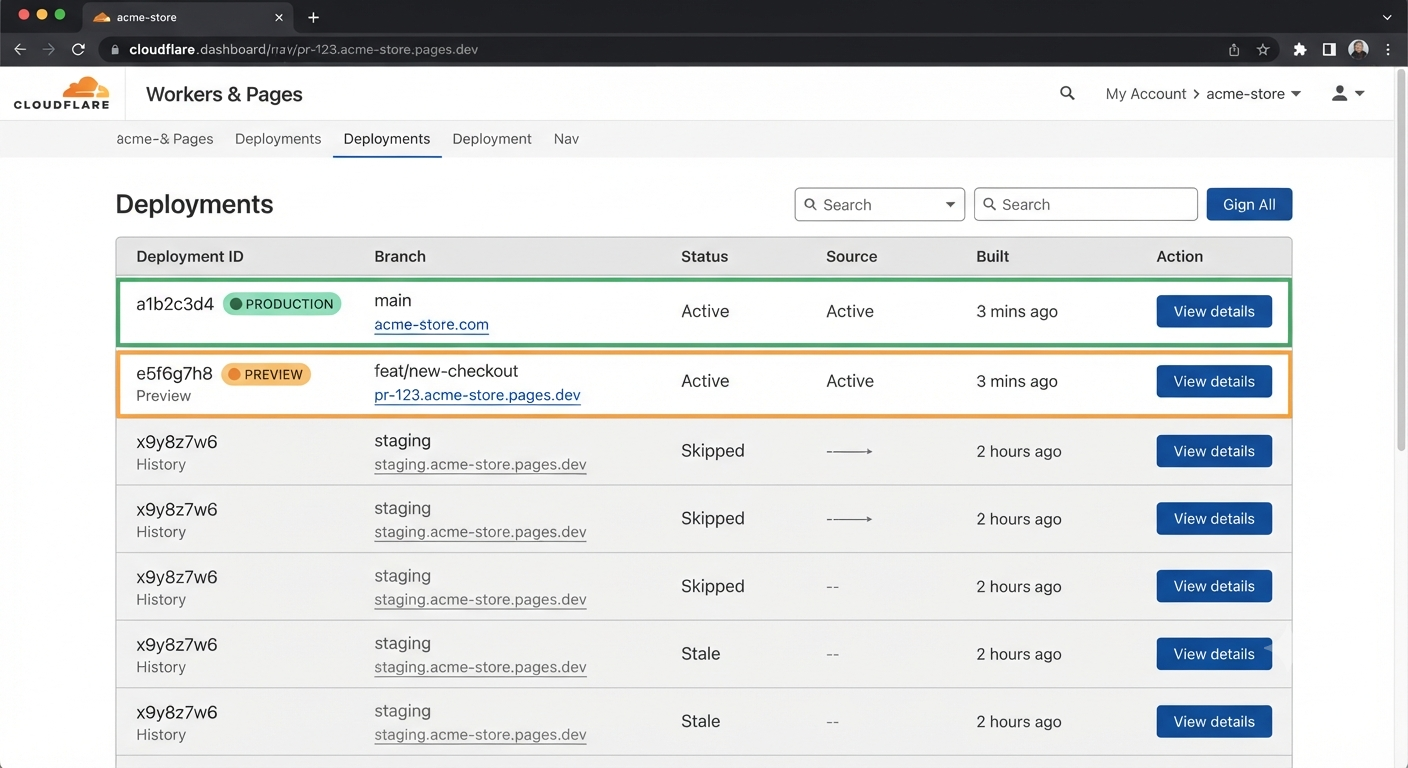
GitHub can display checks and deployment information associated with a Pull Request.
Check whether the required checks have completed successfully and whether the preview deployment is available for testing.
If a preview deployment is available, open it and test the feature before merging it into main.
Do not treat a Pull Request as ready simply because it exists. Review the changes, check the deployment, and test the preview before merging.
Merge the Pull Request
Once the changes have been reviewed, tested, and the required checks have completed, the Pull Request can be merged into main.
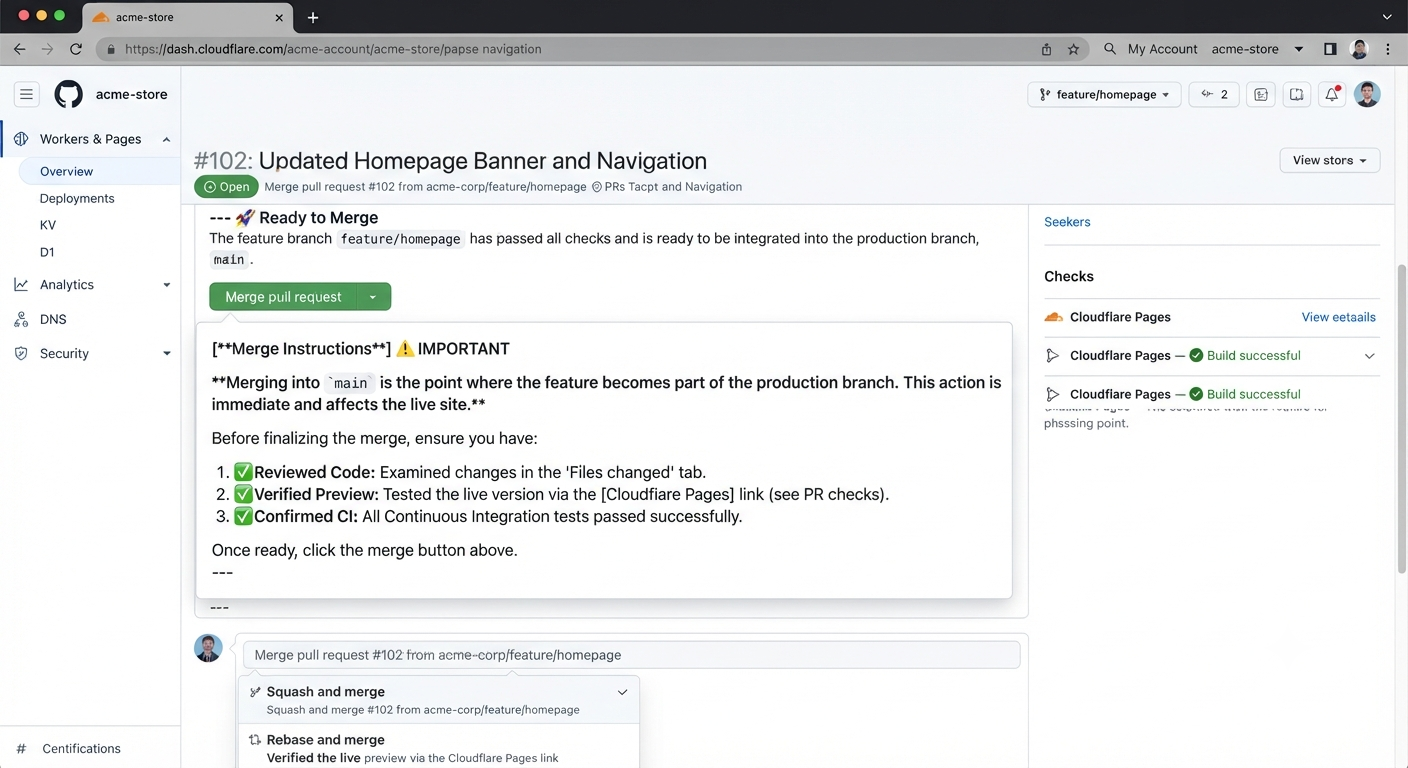
The GitHub Pull Request page provides the merge action after the required review and checks are complete.
The changes from the feature branch become part of the main branch.
feature/homepage
      ↓
main Merging into main is the point where the feature becomes part of the production branch. Make sure the changes are ready before completing the merge.
After the Pull Request is merged, Cloudflare Pages can detect the new commit on main and start the production deployment process.
Delete the feature branch
After a Pull Request has been merged, the completed feature branch may no longer be needed.
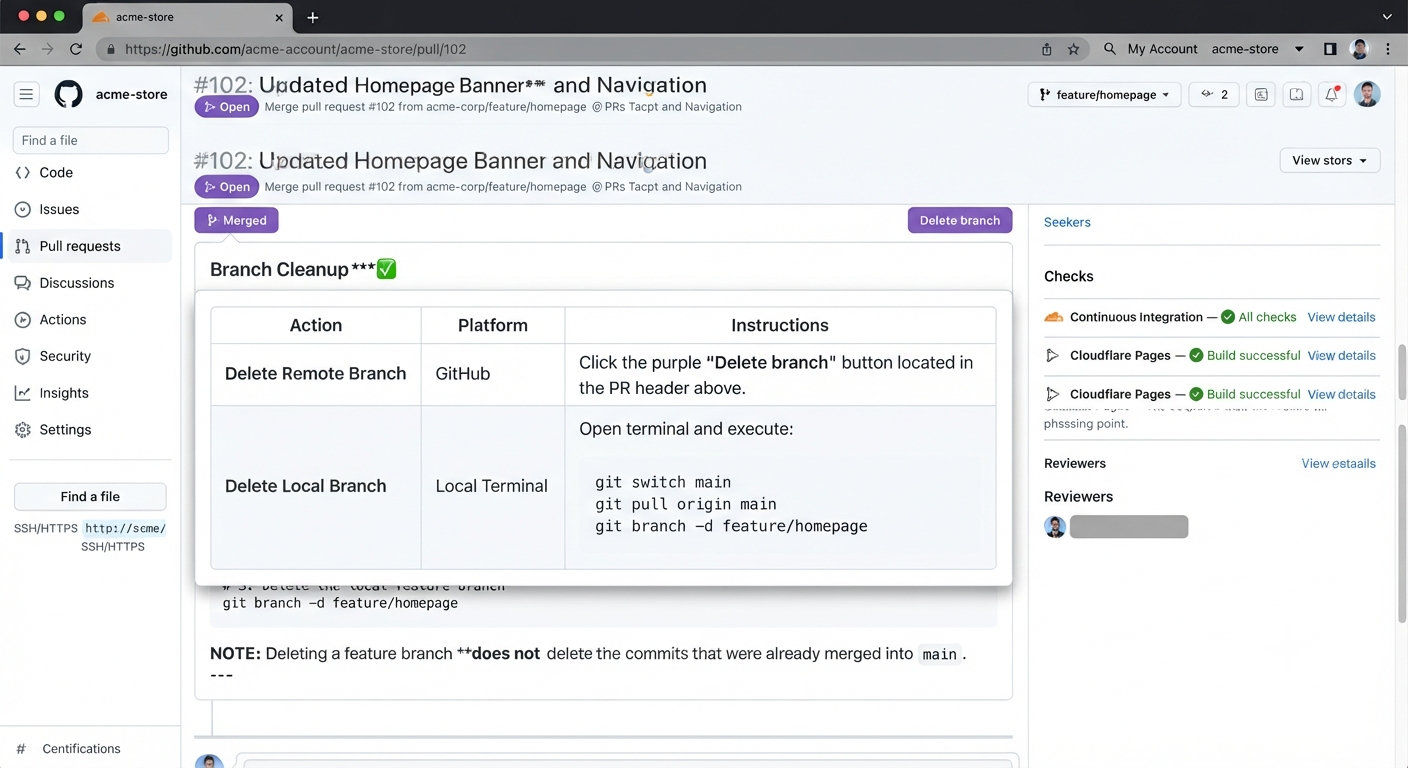
After a Pull Request is merged, GitHub can provide an option to delete the remote feature branch.
Feature branches are normally temporary. Once their work has been merged into main, removing the old branch keeps the repository easier to manage.
The local branch can also be removed when it is no longer required.
git switch main
git branch -d feature/homepage
Deleting a feature branch does not delete the changes that were already merged into main.
Do not delete the main branch. It is the production branch in our PageDeploy workflow.