What happens after the merge?
When the Pull Request is merged, the changes from the feature branch become part of the main branch.
In our workflow, main represents the production branch of the project. This is a workflow convention; Git itself does not require a particular branch to be the production branch.
Once the merge is complete, the production deployment process can begin because the configured production branch now contains the new changes.
main changes
After the Pull Request is merged, the repository’s main branch contains the newly merged feature.
You can think of the repository at this point as having two important states:
| Branch | Role |
|---|---|
main | Contains the production version and newly merged changes. |
feature/* | Contains development work that has already been merged or may be deleted. |
The merge changes GitHub’s main branch. Cloudflare then uses that change as the source for the production deployment.
Cloudflare detects the commit
Because the Pages project is connected to the GitHub repository, a new commit on the configured production branch can trigger a new production deployment.
Cloudflare receives the updated source and begins the deployment process.
With Git integration configured, you normally do not need to manually upload the production files after every merge.
Build
Cloudflare runs the build command configured for the Pages project.
For example, a Vite project commonly uses:
npm run buildThe build process transforms the source project into the files that will be deployed.
The build command depends on the project. Always use the command appropriate for your framework or build configuration.
Deployment
If the build succeeds, Cloudflare proceeds with the deployment.
The newly generated version becomes the current production deployment.
If the deployment fails, the production version is not updated by that failed deployment. Check the deployment logs to identify the problem.
Verify production
After the deployment succeeds, open the production website and verify that the merged feature is available.
Do not assume that a successful deployment means every part of the website behaves correctly. Test the actual production site.
| Check | What to verify |
|---|---|
| Page | The updated page loads correctly. |
| Navigation | Links work as expected. |
| Layout | Desktop and mobile layouts remain correct. |
| Feature | The newly merged feature works correctly. |
Preview testing happens before the merge. Production verification happens after the merge and deployment.
Rollback concepts
Sometimes a new production deployment introduces a problem that was not discovered during preview testing.
There are two different recovery approaches in our workflow: a fast Cloudflare rollback and a GitHub revert.
Option 1: Cloudflare Pages rollback
If production needs to be restored quickly, Cloudflare Pages allows you to roll production back to a previous successful production deployment.
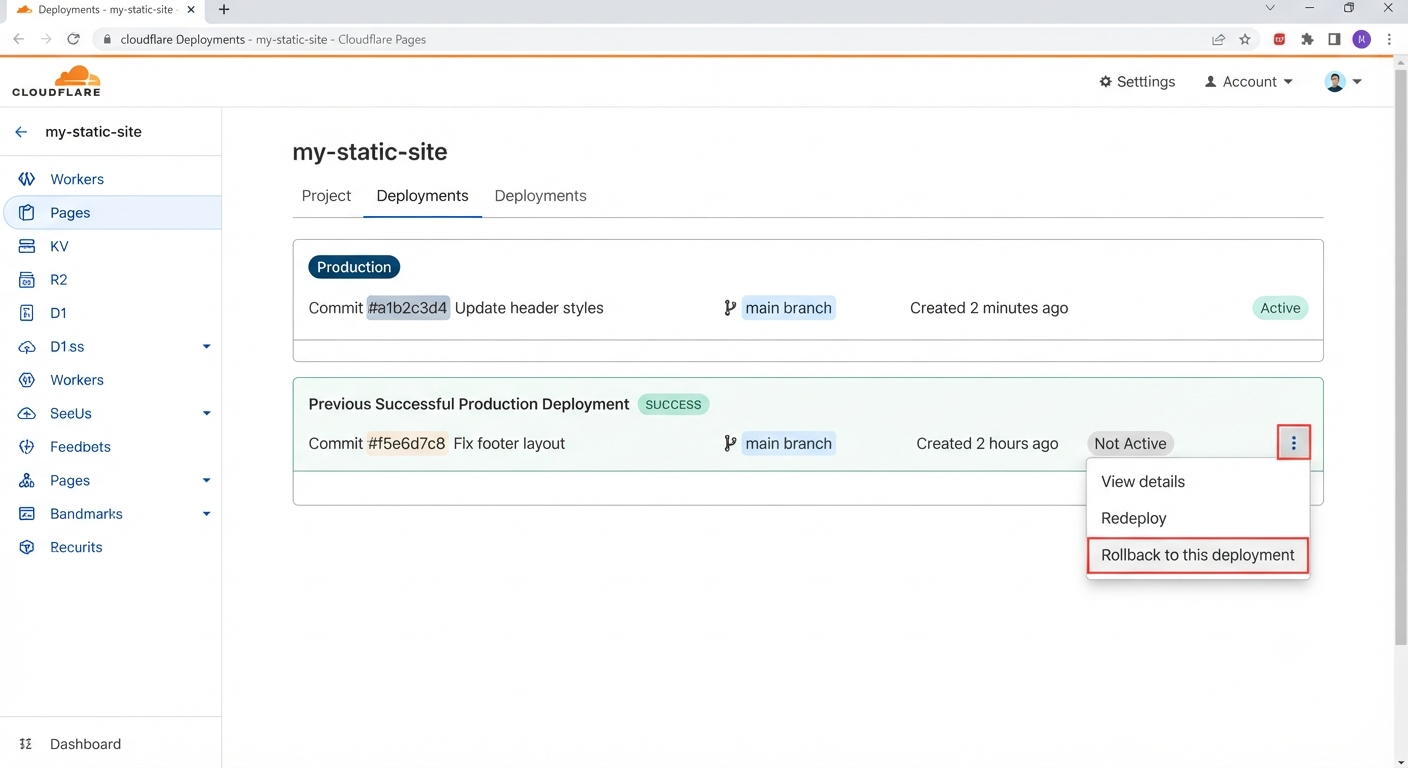
Cloudflare Pages provides a rollback action from a previous successful production deployment.
Open the deployment actions menu and choose the rollback option.
Confirm that production is serving the restored version.
In Cloudflare Pages, go to Deployments, find the previous successful production deployment, open its actions menu, and choose Rollback to this deployment.
A preview deployment is not a rollback target. The rollback target must be a successful production deployment.
Option 2: Revert the Pull Request
A Cloudflare rollback changes which successful deployment is serving production, but it does not undo the change in GitHub’s main branch.
If the problematic change should also be reversed in the Git history, GitHub can create a new Pull Request that reverts the original Pull Request.
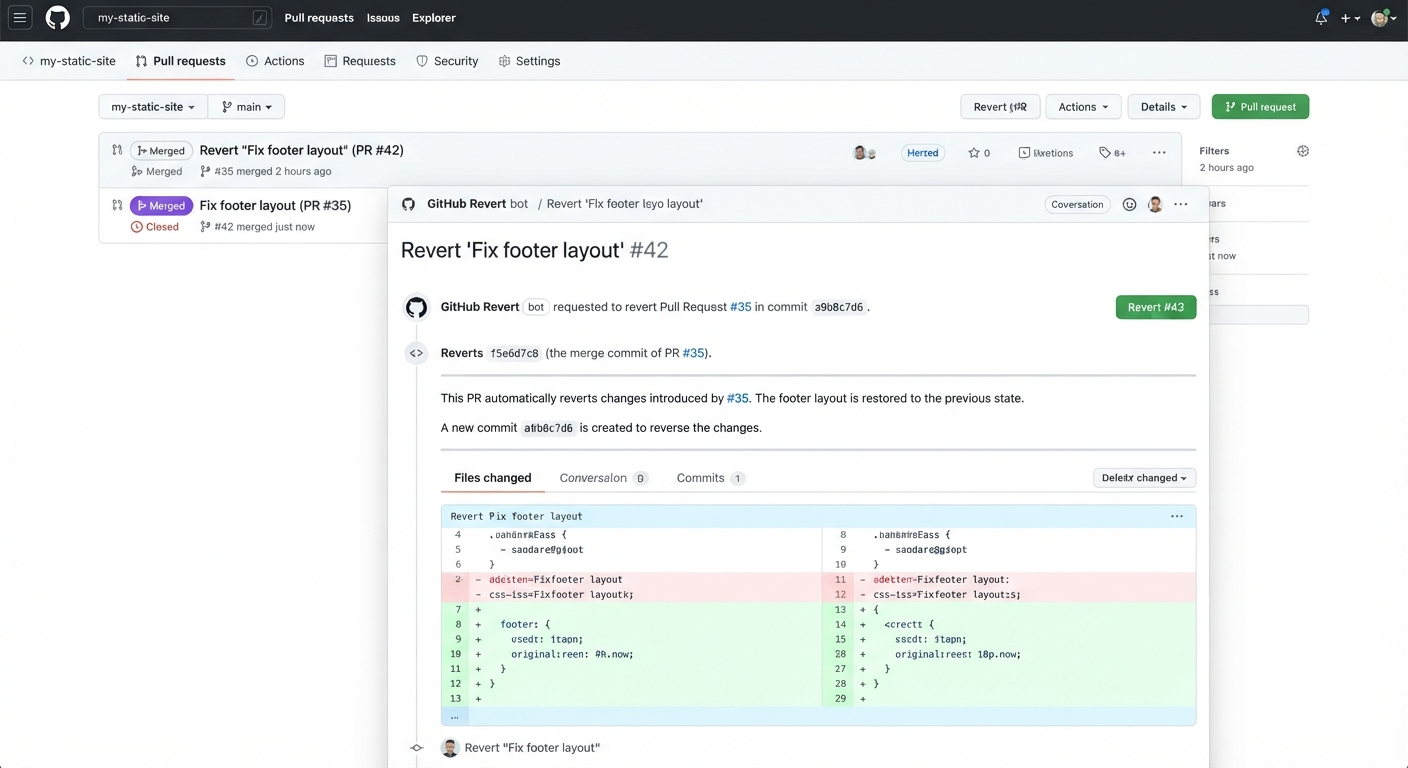
GitHub can create a new Pull Request that reverses the changes introduced by an earlier merged Pull Request.
Use GitHub’s Revert action to create a new Pull Request.
Review and test the reversal like any other Pull Request.
A Cloudflare rollback changes which successful deployment is serving production.
A GitHub revert creates a new change that reverses an earlier Pull Request in the repository.
| Situation | Approach |
|---|---|
| Production needs immediate recovery | Cloudflare Pages rollback |
| The problematic change should be reversed in GitHub | Revert the Pull Request |
| The underlying problem needs fixing | Create a new feature/fix branch and follow the normal Pull Request workflow |
Rollback or revert restores a safer state. After recovery, investigate the original problem and create a proper fix.