What Cloudflare Pages does
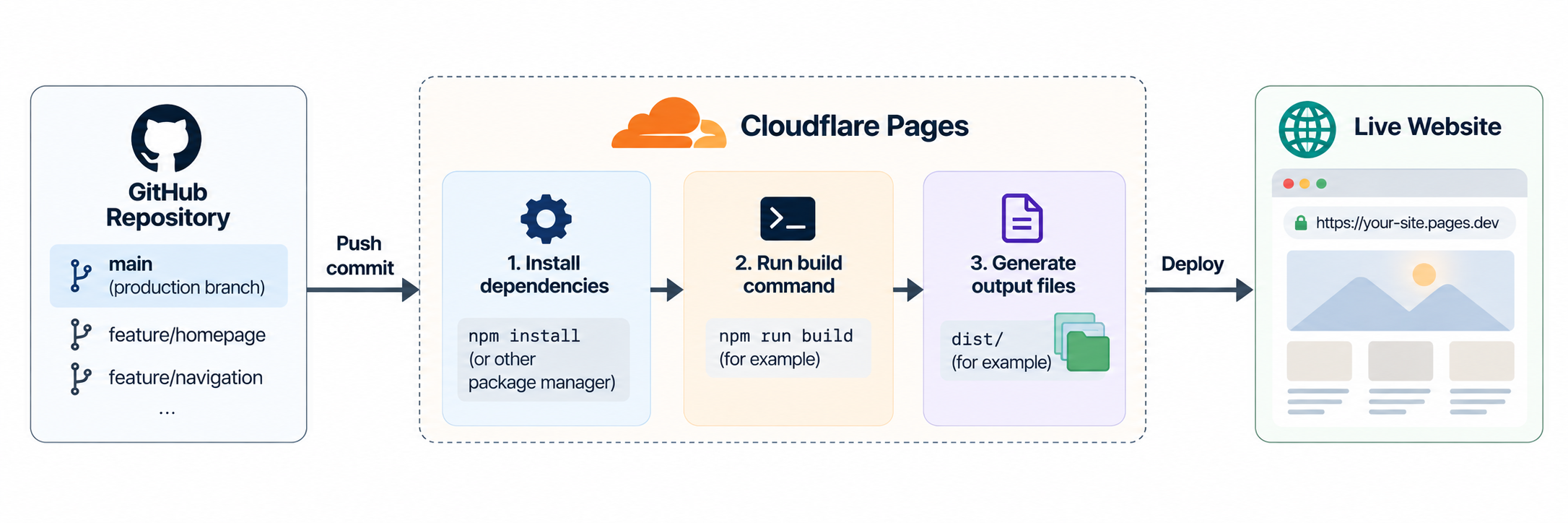
Cloudflare Pages can connect directly to your GitHub repository and automatically deploy your website when changes are pushed to the configured production branch.
This means you do not need to manually upload the website every time you make a change.
The built project is deployed and made available on the web.
Connect GitHub
Start by creating a Pages project from the Cloudflare dashboard.
Choose the option that allows the project to be connected to a Git provider, then authorize Cloudflare to access GitHub.
The exact wording and appearance of the Cloudflare dashboard can change over time. The important concept is to connect the Pages project to the GitHub repository containing your website.
Select the repository
After connecting GitHub, select the repository that contains your website.
For this guide, the example repository is:
pagedeployCloudflare Pages will use this repository as the source for future deployments.
Production branch
Configure main as the production branch.
This establishes the relationship between GitHub and production:
| Branch | Role |
|---|---|
main | Production branch. |
feature/* | Development branches. |
Do not use a feature branch as the production branch when following this workflow. Feature branches are intended for development and preview deployments.
Build command
If your project uses a framework or build tool, Cloudflare Pages needs to know which command should be used to create the production files.
For example, a Vite project commonly uses:
npm run buildThe correct command depends on how your particular project is configured.
Build output directory
The output directory tells Cloudflare where the finished website files are generated after the build completes.
For a typical Vite project, the default production output directory is:
distDo not blindly use dist for every project. The output
directory depends on the framework or build configuration you are
using.
First deployment
After the repository and build settings are configured, create the deployment.
Cloudflare will retrieve the project from GitHub, run the configured build command, and deploy the resulting output.
Deployment logs
Every deployment provides information about what happened during the deployment process.
If a deployment fails, inspect the build logs before changing your configuration. They can help identify problems such as:
| Problem | Example |
|---|---|
| Build command | Incorrect or missing command. |
| Dependencies | Required package is missing. |
| Output directory | Cloudflare cannot find the generated files. |
| Application error | The project fails during its build process. |
Treat the deployment log as the first place to investigate when a build does not succeed.